Article
How to send an invoice: email templates, links, and PDFs
Send an invoice by email, PDF, web link, or QR code. Includes copy paste email templates, subject lines that get opened, and what to do after you hit send.
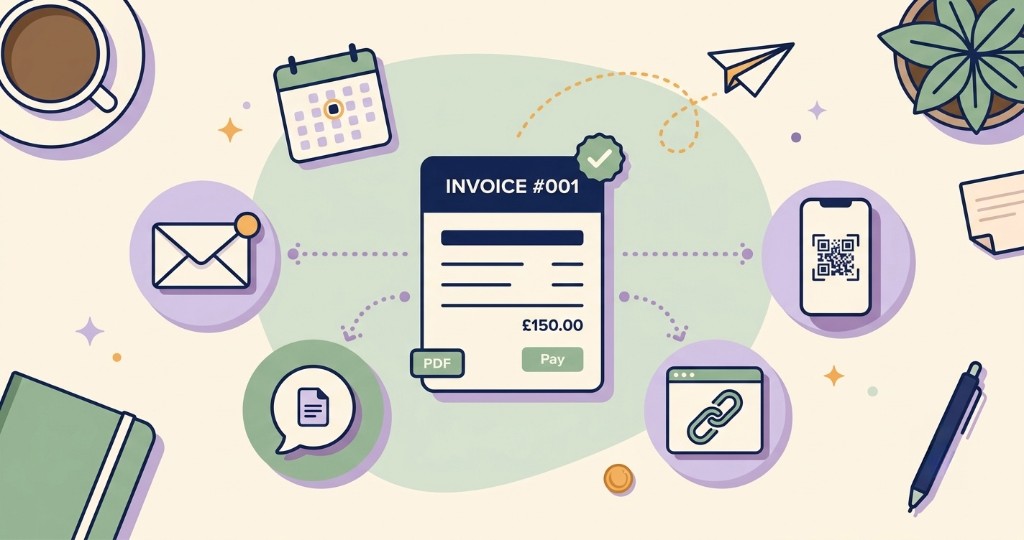
Short answer: send it the same day you deliver. Most clients are happy with a PDF or a web link, and it doesn’t much matter whether that goes by email or WhatsApp. In an email, the subject line should carry the invoice number and due date. The message itself only needs to say what the invoice is for, how much, when it’s due, and how they can pay. That’s genuinely all most clients need.
Sending an invoice is more than attaching a file and hoping for the best. You want to get paid, which means it has to land with whoever actually pays the bills, and they need to see straight away how to pay. A PDF, a web link, and a QR code all work. Or combine them.
If you still need to build the document, start with how to make an invoice. This post is about getting it into the client’s hands without creating a new delay.
Choose how to send it
| What you send | How to deliver it | Best for | Things to watch |
|---|---|---|---|
| Email attachment, WhatsApp, vendor portal | Corporate finance teams and record keeping | Large files; sending to the wrong person | |
| Web link | Email body, chat apps, text message | Quick sharing on chat apps; opens on any phone without a download | The client has to click it |
| QR code | The client scans it from your phone screen, or you send it as an image | In person handovers, such as finishing a job on site | Make sure the invoice shows how to pay |
| PDF + link together | One email with the PDF attached and the link in the body | Most freelancers | None really; it covers both kinds of client |
In our experience, sending the PDF and the link together gets invoices paid fastest. Some clients forward the PDF to their accounts team; others pay from their phone in ten seconds.
This is still the default for most accounts payable teams. They download the PDF, match it to a purchase order, and schedule the payment. You can attach it to an email, drop it in a chat, or upload it to a client’s vendor portal.
Always send a PDF, not a Word file or a screenshot. A PDF looks the same on every device and can’t be edited by accident. Give it a clear filename such as INV-0042-Brightline.pdf, so nobody ends up with “invoice final v3.pdf” in their downloads.
Web link
A web link opens the invoice as a page in the client’s browser, so there’s nothing to download and it looks right on any phone. It’s the easiest option for chat apps or a text message. See share via link, PDF, or email.
QR code
A QR code works best when you’re face to face: finishing a job on site, handing over a project, or meeting a client in person. You open the code on your phone, and the client points their camera at it and lands on the same page as the web link, where they can view the invoice and pay.
In Trueinvoice, open the share options and choose QR code. The client can scan it straight from your screen, or you can download it as an image and send it in a message. Sharing by QR doesn’t mark the invoice as sent on its own, so tap Mark as Sent afterwards to keep your records right.
You might also see bank QR codes, like the EPC QR code (GiroCode) used for SEPA transfers in Europe or the Swiss QR bill. They carry the bank details and amount inside the code itself. That’s a different thing from a code that just opens a link.
How to email an invoice
The wording matters less than you’d think. These four things matter more:
- Send from a business address. An email from your own domain looks more legitimate and is less likely to end up in spam than a random personal address.
- Put the amount and due date in the email itself. Plenty of people read email on their phone and never open the PDF.
- Keep it short. Three or four lines plus a thank you is plenty.
- Ask for the invoice number as the payment reference. That’s how you match the money to the right invoice later.
Subject line tips
- Start with “Invoice” and the number
- Add the due date when there’s room
- Skip anything clever; it just looks like marketing mail
Good examples: “Invoice INV-0042 from Brightline Studio, due 15 September” or “Invoice INV-0042 for the website redesign: £1,200 due 15 Sep.”
Invoice email templates
Copy these and fill in the brackets. You don’t need a separate payment link in the email. The way to pay (an online Pay button or your bank details) belongs on the invoice itself, so the email just has to point to it. That’s how FreshBooks, QuickBooks, and Zoho handle it too.
Standard invoice (online payment)
Use this if your invoice has a Pay button or payment link from a gateway like Stripe, PayPal, or Square. In Trueinvoice, you get one by connecting Stripe.
Subject: Invoice [INV-0042] from [Your Business], due [date]
Hi [Name],
Thanks again for [project]. Invoice [INV-0042] for [amount] is attached, due [date].
You can pay online using the Pay button on the invoice, or view it here: [invoice link].
Thanks,
[Your name]
Standard invoice (bank transfer)
Subject: Invoice [INV-0042] from [Your Business], due [date]
Hi [Name],
Thanks again for [project]. Invoice [INV-0042] for [amount] is attached, due [date].
The bank details are at the bottom of the invoice. Please use [INV-0042] as the payment reference so I can match it up.
Thanks,
[Your name]
First invoice to a new client
Subject: Invoice [INV-0042] from [Your Business], due [date]
Hi [Name],
It’s been great working with you on [project]. Attached is my first invoice, [INV-0042], for [amount], due [date].
You’ll find the payment details on the invoice. If your team needs anything else from me to set me up as a supplier, such as a W-9, tax details, or a PO number, just let me know.
Thanks,
[Your name]
Deposit invoice
Subject: Deposit invoice [INV-0042] for [project], due [date]
Hi [Name],
Thanks for approving the estimate. Here’s the [40%] deposit invoice, [INV-0042], for [amount], due [date].
The payment details are on the invoice. Once it’s paid, I’ll get started on [start date].
Thanks,
[Your name]
Monthly retainer invoice
Subject: Invoice [INV-0042]: [Month] retainer, due [date]
Hi [Name],
Here’s the invoice for the [Month] retainer, [INV-0042], for [amount], due [date]. Same payment details as usual; they’re on the invoice.
Thanks,
[Your name]
Resending an invoice
Subject: Resending invoice [INV-0042], due [date]
Hi [Name],
Just resending invoice [INV-0042] for [amount] in case the first email got lost. The PDF is attached again, and here’s the online version: [invoice link].
Could you confirm this is the right email for invoices going forward?
Thanks,
[Your name]
For recurring work, see recurring invoices explained.
How to send an invoice on WhatsApp or other messaging apps
Plenty of clients, especially smaller local businesses, would rather get an invoice on WhatsApp, Telegram, Slack, or plain text message than by email. That’s fine. WhatsApp is only how it gets there, though. What you send should still be a proper invoice, not a quick “£400 please” message.
Send the PDF as a file (on WhatsApp, tap Document) rather than a photo. Photos get squashed, and your client ends up squinting at a blurry picture of your invoice. Or paste the web link, which opens straight on their phone. Either way, add a short message so the amount and due date are visible in the chat:
Hi [Name], here’s invoice [INV-0042] for [project]. It’s [amount], due [date]. The payment details are on the invoice. Thanks!
Double check the number before you hit send, and keep bank details out of busy group chats. Then email a copy as well. A chat thread is hard to search six months later, and your client’s accounts team probably isn’t in it.
Who should receive the invoice
Confirm the billing contact
The person who approved the work isn’t always the person who pays. Ask early for the billing email, a PO number if they use them, and any portal instructions.
Who to put in To, CC, and BCC
Larger clients often need more than one inbox. A simple pattern:
- To: accounts payable or the named billing contact
- CC: the project owner who can approve or unblock it
- BCC: yourself, if your email tool doesn’t keep a sent copy
Don’t CC five people “just in case.” Extra recipients lead to reply all chains and sometimes conflicting instructions. If a second approver needs to see the bill, mention them once in the email (“CC’ing Alex for project context”) so everyone knows why they’re there.
When two companies are involved, such as a parent company and a local subsidiary, check which one’s email address and PO belong on the invoice before you send. Bill the wrong one and nobody tells you. The invoice just sits there.
Vendor portals
If you only work with small businesses, you can skip this section. Larger companies often won’t pay from an emailed PDF at all. Instead, they ask you to upload the invoice into a vendor portal such as Coupa, SAP Ariba, or their own upload page.
What to gather before you upload
You’ll need the portal link and your login, plus the vendor or supplier number they gave you. Check which fields are required (usually the PO, your tax ID, and sometimes a cost centre) and what files it accepts. Most portals want a PDF under a certain size.
Upload checklist
- Match your legal name and address to how you’re registered in the portal
- Enter the PO exactly as issued, because spaces and leading zeros matter
- Upload the same PDF you’d email, with the correct invoice number
- Save a screenshot or confirmation number, along with the upload date
- Send your contact a quick note anyway: “Uploaded INV-0042 to the portal on [date].”
If the portal rejects it
Fix whatever failed (a wrong PO, a missing tax field, a file that’s too big) and upload it again. Don’t try to get around the portal by emailing the PDF if their policy says portal only; it won’t get paid any faster. If the error message is vague, ask your contact which field is the problem.
Vendor onboarding forms
Before the first invoice, some finance teams send a vendor onboarding pack. It’s dull, but until it’s done, they can’t pay you.
What to expect
Usually a bank details form, proof of who you are (or your company registration), any tax numbers you have, and a contact for remittance advice. You’ll often be asked to agree to their payment terms too, and Net 30 is common.
How to handle it without delaying work
Fill it in as early as the estimate stage, once you know the client is serious. If Net 30 is non negotiable, protect yourself with a deposit or milestone payments rather than arguing about terms after delivery. Keep a folder of the documents you’ve already submitted, so the next big client is quicker.
After onboarding is done
Ask for your vendor ID, the billing email (or portal instructions), and whether every invoice needs a PO. It’s also worth asking when they run payments. Many companies only pay in weekly or fortnightly batches, so missing one by a day can cost you a week.
Then send the first invoice. Send it before your vendor record is set up and even a perfect invoice can wait weeks.
Send it the same day you deliver
Bill the day you deliver. It’s the simplest habit there is, and the easiest one to let slide when you’re busy. Every day you wait pushes your payment back by a day too. Give it a real due date, too. See payment terms on invoices and get paid faster.
Quick check before you hit send
- It’s going to the billing contact, not just your day to day contact
- The PDF is actually attached (it happens to everyone)
- The amount matches what you agreed
- The invoice number is new and follows your usual format
- The due date is a real calendar date
- The PO or reference number is included if they gave you one
- There’s a clear way to pay: bank details on the invoice, or an online Pay button if you’ve connected Stripe
After you hit send
Track the status
Then keep track of where each one is: sent, partly paid, or paid in full. That list is what your weekly money review in cash flow habits runs on.
If nobody responds
- Check the email address
- Resend the PDF and link
- Send a short reminder once the due date passes
- Pick up the phone if the amount is large
Automatic reminders keep the tone consistent and save you writing the same email twice. See how to set up and send payment reminders and set up automatic reminders.
Common sending mistakes
- Sending to someone’s personal Gmail when finance needs a billing inbox
- Leaving the due date out of the email
- Asking the client to “reply for bank details”
- Waiting a week after delivery
- Sending a Word file or a screenshot instead of a PDF
- Reusing an old PDF with an out of date invoice number
Where to go next
FAQ
Should I email a PDF or send a payment link?
Both, if you can. Finance teams like the PDF because they can save it and pass it on. Busy clients like the link because it just opens on their phone. Put both in one email and you’ve covered everyone. If you connect Stripe, the Pay button shows up on the PDF and the web version, so they can pay by card, Apple Pay or Google Pay from either.
Should I send an invoice as a PDF or a Word file?
A PDF. It looks the same on every device, can’t be edited by accident, and is what most accounts teams expect. A Word file can look completely different on their computer, and a screenshot is a pain for anyone to file.
Can I send an invoice with a QR code?
Yes. It’s really handy face to face. Show the code on your phone, the client scans it, and the invoice opens on theirs, ready to pay. You can send it as an image too. Just scan it yourself first to check it opens the right invoice.
What should I write in the invoice email?
Not much. Say which invoice it is, what it’s for, how much, when it’s due and how to pay. Attach the PDF or drop in the link, and ask them to use the invoice number as the payment reference so you can match it up.
When should I send the invoice?
Ideally the day you hand the work over, or the next day at the latest. Every day you wait is a day the payment clock hasn’t started.
What if the client says they never received it?
Send it again with the PDF and the link, double check you’ve got the right billing email, and ask them to have a look in spam. Then note the resend date in your records.